High refresh rate monitors hit a new mainstream threshold in 2026. Acer launched a new 27-inch WQHD 144Hz model in February, Xiaomi expanded its budget 144Hz Monitor A24i 2026 globally for around $90–$125, and the broader market trend is clear: 144Hz is now the floor for anything sold as a productivity-grade display. The upgrade from 60Hz isn’t just for gaming — scrolling through long documents, fast-switching between apps, and reading code on a high-refresh panel is measurably more comfortable over a full workday.
The eye fatigue reduction is the practical argument for remote workers. At 60Hz, fast scrolling creates a subtle strobing effect as the screen updates 60 times per second. At 144Hz and above, that update rate nearly eliminates the perceptible flicker during rapid movement. For people who spend 6–10 hours reading and navigating text-heavy content, that reduction in visual stress compounds across weeks and months.
This roundup covers five monitors — ranging from a budget 1080p IPS entry point to a large 32-inch curved 1440p panel — all running at 144Hz or higher.
Quick Comparison
| Monitor | Size | Panel | Refresh Rate | Resolution | Price |
|---|---|---|---|---|---|
| ASUS TUF VG27AQL1A | 27” | IPS | 170Hz | 1440p | $245.00-$269.99 as of Oct 18, 2026 |
| BenQ MOBIUZ EX2710Q | 27” | IPS | 165Hz | 1440p | Unavailable |
| Samsung Odyssey G55C | 32” | VA | 165Hz | 1440p | Unavailable |
| Dell S2722DGM | 27” | VA | 165Hz | 1440p | Unavailable |
| BenQ MOBIUZ EX2710S | 27” | IPS | 165Hz | 1080p | Unavailable |
1. ASUS TUF Gaming VG27AQL1A — Best Overall
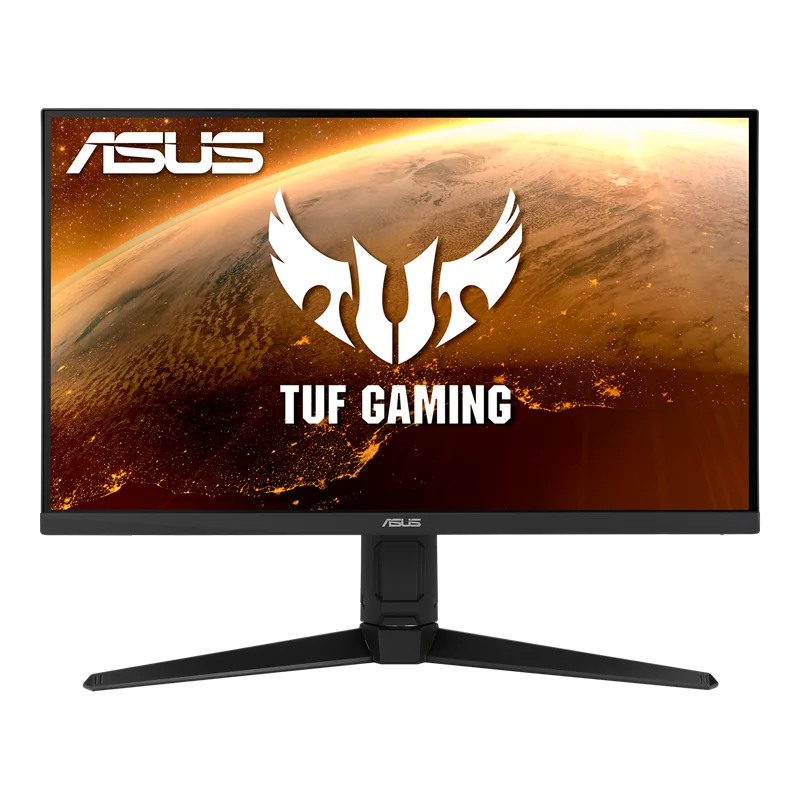
ASUS TUF Gaming VG27AQL1A
Pros
- 170Hz IPS panel delivers genuinely smooth document scrolling — the difference over 60Hz is apparent within the first hour
- 130% sRGB coverage produces colors that are punchy without oversaturation, accurate for design review and document work
- G-SYNC Compatible and FreeSync Premium cover both GPU ecosystems, reducing screen tearing in after-hours use
- Full ergonomic stand — height, tilt, swivel, and pivot — means proper eye-level positioning without an arm purchase
- Built-in speakers handle video call audio and background music without a separate desk speaker
- DisplayHDR 400 adds visible brightness headroom when working near windows in bright daylight conditions
Cons
- No USB-C — MacBook users need a dock or USB-C to DisplayPort adapter for connection
- 130% sRGB is wider than sRGB but falls short of DCI-P3 panels; not the right pick for professional video or P3 color work
- Built-in speakers are adequate but thin-sounding compared to a dedicated desktop speaker or BenQ's MOBIUZ audio
The ASUS TUF VG27AQL1A earns the top spot by hitting the core requirements for a remote work monitor without significant tradeoffs: 1440p IPS panel, 170Hz refresh rate, full ergonomic stand, and a price below $300.
The 130% sRGB color space sits between standard IPS (100% sRGB) and wide-gamut DCI-P3 panels. For most remote work — document editing, web design in sRGB-calibrated browsers, spreadsheets, video calls — the colors look vivid and accurate. For professional color grading or print work where DCI-P3 coverage matters, the BenQ MOBIUZ EX2710Q with 95% DCI-P3 is the better call.
What makes the VG27AQL1A stand out at its price is the ergonomic stand. Budget monitors in this category frequently ship with tilt-only stands. The VG27AQL1A includes height, tilt, swivel, and pivot — meaning proper eye-level positioning doesn’t require a separate monitor arm. The built-in speakers handle video calls and background audio without a separate USB speaker. For a remote worker building a clean, minimal desk setup, those included features remove $30–$80 of additional hardware costs.
G-SYNC Compatible certification means NVIDIA GPU owners get variable refresh rate support with no adaptive sync tearing on fast window movements or video playback. AMD FreeSync Premium covers the other GPU camp.
The one thing it lacks is USB-C. MacBook users and USB-C laptop users need either a USB-C to DisplayPort cable or a dock. If single-cable setup is a priority, the BenQ MOBIUZ EX2710Q or a dock purchase changes the math.
2. BenQ MOBIUZ EX2710Q — Best for Remote Work Audio
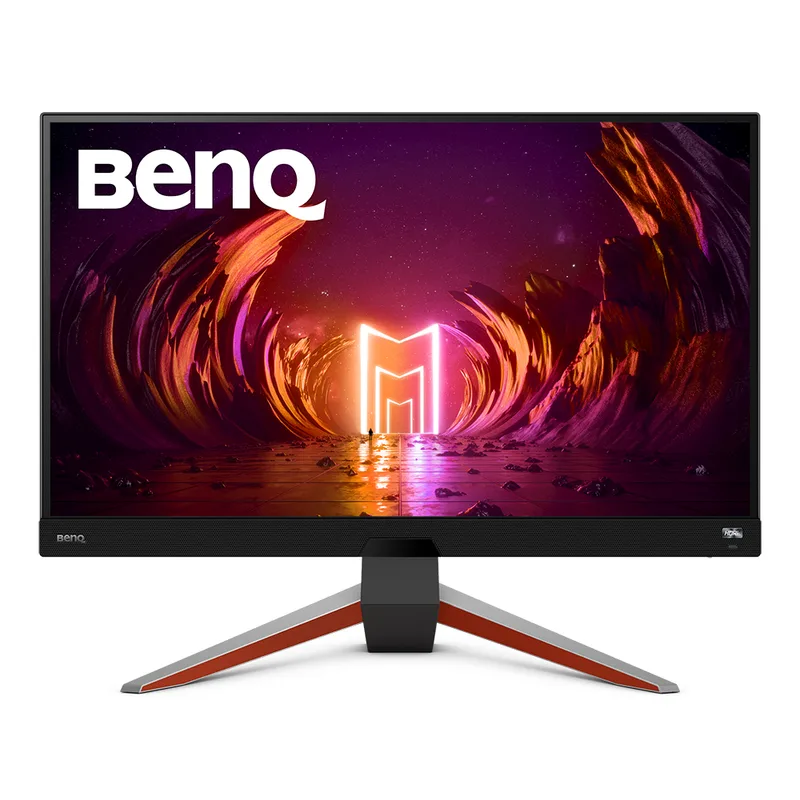
BenQ MOBIUZ EX2710Q
Pros
- 2.1ch speaker system with a dedicated subwoofer produces noticeably fuller audio than standard two-channel desk monitors — good for conference calls without a headset
- HDRi technology adjusts tone mapping based on content type, improving legibility in dark-themed code editors and document-heavy workflows
- 95% DCI-P3 coverage handles creative work that extends beyond the sRGB gamut — color review, social media graphics, photography editing
- 165Hz at 1440p makes fast scrolling through dense spreadsheets or long documentation comfortable over a full workday
- Color Optimizer mode boosts saturation for video without affecting calibration in work profiles — useful for dual-purpose setups
- Full stand ergonomics allow proper monitor height without additional hardware cost
Cons
- No USB-C power delivery — laptop users who want a single-cable setup need a dock
- HDRi auto-adjustment can shift the display appearance unexpectedly when switching between dark and light windows; it is togglable
- $279–$329 is a step up in price compared to monitors with similar refresh rates but without the audio system
The BenQ MOBIUZ EX2710Q is built around one differentiator: audio. The 2.1ch speaker system includes dedicated treble drivers and a built-in subwoofer — a configuration that produces noticeably fuller sound than the flat two-channel setups found in most monitors, including the ASUS VG27AQL1A. For remote workers who run video calls through the monitor’s speakers rather than a headset, the audio quality difference is meaningful.
The monitor itself is a solid performer: 27-inch IPS, 1440p, 165Hz, 95% DCI-P3. The DCI-P3 coverage makes this the right pick for designers and photographers reviewing color-critical content. BenQ’s HDRi technology reads room ambient lighting and adjusts tone mapping dynamically — reducing the visual jarring of switching between dark mode applications and bright web pages over a full workday.
The Color Optimizer profiles let users set separate color modes for different applications — boosting saturation for video content while keeping a calibrated profile for design work. The USB 3.0 hub keeps peripherals organized through the monitor.
The primary limitation is cost. At $279–$329, the EX2710Q is the most expensive monitor in this roundup. The price premium over the ASUS VG27AQL1A ($249–$299) buys the 2.1ch audio system and wider DCI-P3 coverage. If neither of those matters, the ASUS delivers comparable panel specs at a lower price. If they do matter, the BenQ is worth the gap.
No USB-C is the same limitation as the ASUS — docking station required for MacBook single-cable setups.
3. Samsung Odyssey G55C 32” — Best Large Screen
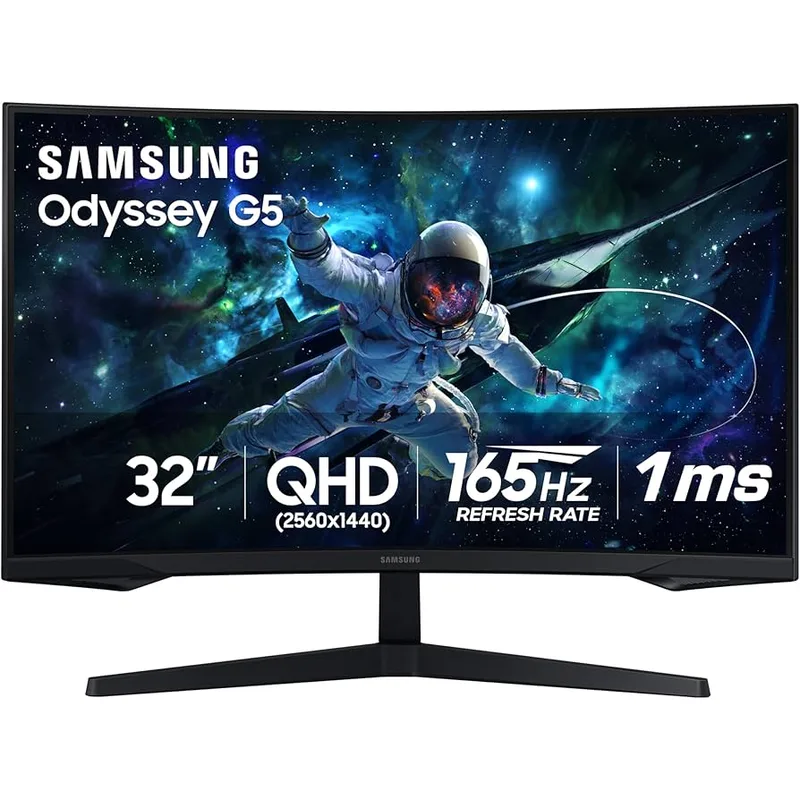
Samsung Odyssey G55C (32")
Pros
- 32-inch QHD delivers approximately 91 PPI — high enough for sharp text without scaling, with more horizontal real estate than a 27-inch panel for spreadsheet and multi-window work
- 1000R curve reduces the angular distance to screen edges, keeping more of the display within a comfortable focus range during long sessions
- VA panel's high native contrast (typically 2500:1 or higher) produces noticeably deeper blacks for dark-mode code editors and reading environments
- 165Hz at 32 inches makes scrolling large documents and switching between virtual desktops visibly smoother than at 60Hz
- At $229–$299 (saw a 39% discount on Amazon in March 2026), a 32-inch 1440p 165Hz panel at this price is hard to match for large-screen buyers
- Eye Saver Mode and flicker-free backlight reduce strain during all-day sessions
Cons
- Tilt-only stand severely limits ergonomic options — a monitor arm is strongly recommended for proper eye-level positioning
- No USB-C, no USB hub, no built-in speakers — connectivity is HDMI and DisplayPort only
- VA panel motion blur at fast refresh rates is more pronounced than IPS alternatives in side-by-side comparisons, though less relevant for productivity use
- 75x75mm VESA pattern limits arm compatibility — verify arm compatibility before purchasing
The Samsung Odyssey G55C 32-inch is the only 32-inch panel in this roundup, and it changes the productivity calculation in ways a 27-inch screen can’t. At 2560×1440 on a 32-inch VA panel, the pixel density is approximately 91 PPI — sharp enough for comfortable text reading without scaling, with a horizontal span that keeps more application windows within peripheral vision simultaneously.
For remote workers who run side-by-side documents, reference panels, or multi-window workflows, the additional screen width reduces the visual fatigue of constantly scrolling back and forth between windows. Owner reports frequently cite the 32-inch size as the threshold where side-by-side document comparison becomes genuinely usable rather than cramped.
The 1000R curvature brings the screen edges closer within the natural eye arc. At 27 inches, 1000R curvature has a modest effect. At 32 inches, the edges of the panel travel further from center — the curve reduces that distance, keeping the full panel within a comfortable focal range without physically turning the head.
The VA panel’s high native contrast ratio produces noticeably deeper blacks than the IPS panels in this roundup. For dark-mode code editors, terminal windows, and dark-background web content, the blacks look genuinely dark rather than the slightly gray blacks typical of IPS panels in ambient light. The tradeoff is IPS-quality off-axis viewing — VA contrast shifts when viewed from the side.
The main limitation is the tilt-only stand. A 32-inch monitor with only tilt adjustment is difficult to position correctly for eye-level ergonomics at most desk heights. Budget for a monitor arm ($30–$70 range, 75x75mm VESA) unless the desk height already puts the panel’s center at eye level. Also note: no USB hub, no USB-C, no built-in speakers.
The G55C saw a 39% discount on Amazon in March 2026 bringing it to $229.99 — at $229–$299, it delivers 32-inch 1440p 165Hz at a price that previously required $400+.
4. Dell S2722DGM — Best Budget 1440p
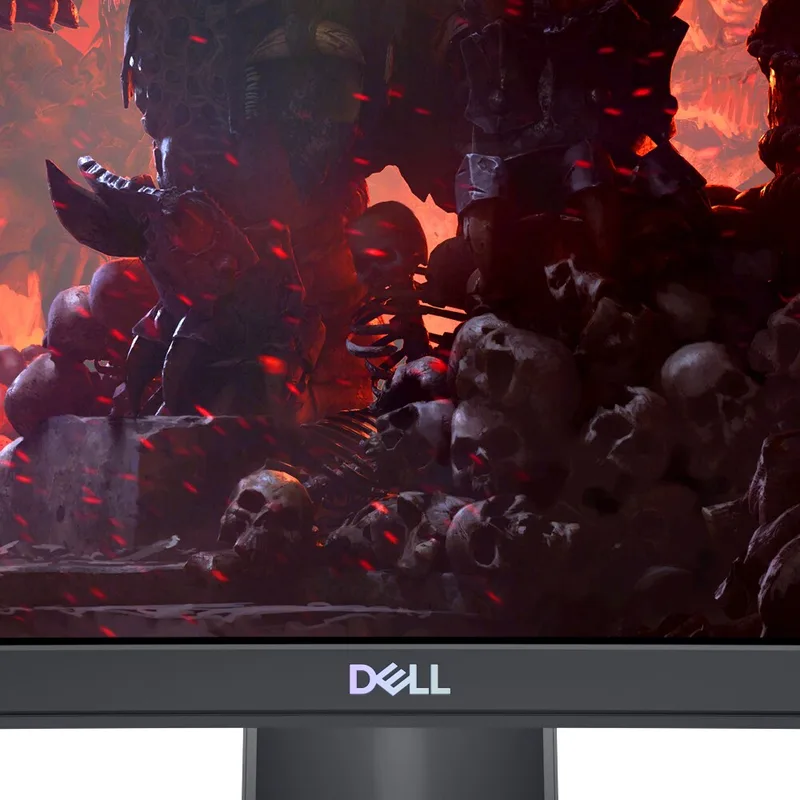
Dell S2722DGM
Pros
- 1440p at 27 inches at $199–$249 is the best pixels-per-dollar entry point in this roundup — sharp text at native scaling without the 1080p pixel density compromise
- Height-adjustable stand on a budget monitor is uncommon at this price; most $200 monitors ship with tilt-only stands
- 165Hz over DisplayPort with FreeSync Premium covers smooth scrolling and reduces screen tearing during fast window movements
- 1500R curved VA panel produces deeper blacks than flat IPS panels at equivalent prices — dark mode coding environments benefit from the contrast improvement
- 100x100mm VESA compatibility means a monitor arm can replace the stand if more positioning flexibility is needed
- Dell's build quality and consistent OSD navigation are well-documented across owner reports at this price tier
Cons
- No USB-C and no USB hub — peripheral connections require a separate hub or dock
- VA panel exhibits color shift at off-axis viewing angles — noticeable when viewing from a steep angle or sharing the screen with a colleague nearby
- HDMI is limited to 144Hz; users who need the full 165Hz must use the DisplayPort connection
- No built-in speakers — budget for audio separately
The Dell S2722DGM is the entry point for 1440p 165Hz curved on a tight budget. At $199–$249, it undercuts the Samsung G55C at 27 inches with a height-adjustable stand — a meaningful ergonomic advantage that most monitors at this price omit.
The 1500R curved VA panel at 27 inches produces a more subtle wrap effect than the 32-inch G55C’s 1000R curve. The curvature is noticeable at desk distance but doesn’t feel aggressive. Owner reports consistently describe it as comfortable for all-day use without the immersive depth some find distracting in a productivity context.
1440p at 27 inches is 108 PPI — sharp enough that text looks crisp at normal scaling without any fractional scaling adjustments in Windows or macOS. The move from 1080p to 1440p at 27 inches is the resolution upgrade most remote workers notice immediately; the move from 1440p to 4K at 27 inches is subtler and requires more GPU power.
165Hz over DisplayPort runs without any configuration. HDMI connections are limited to 144Hz — not a significant degradation, but worth noting for users connecting from a device without DisplayPort output.
Dell’s build quality at this price tier consistently receives high marks in owner feedback for OSD navigation, panel uniformity (minimal backlight bleed), and stand stability. The brand’s track record at the $200–$250 range is reliable for remote workers who can’t return to a retail store for panel lottery replacements.
5. BenQ MOBIUZ EX2710S — Best Budget
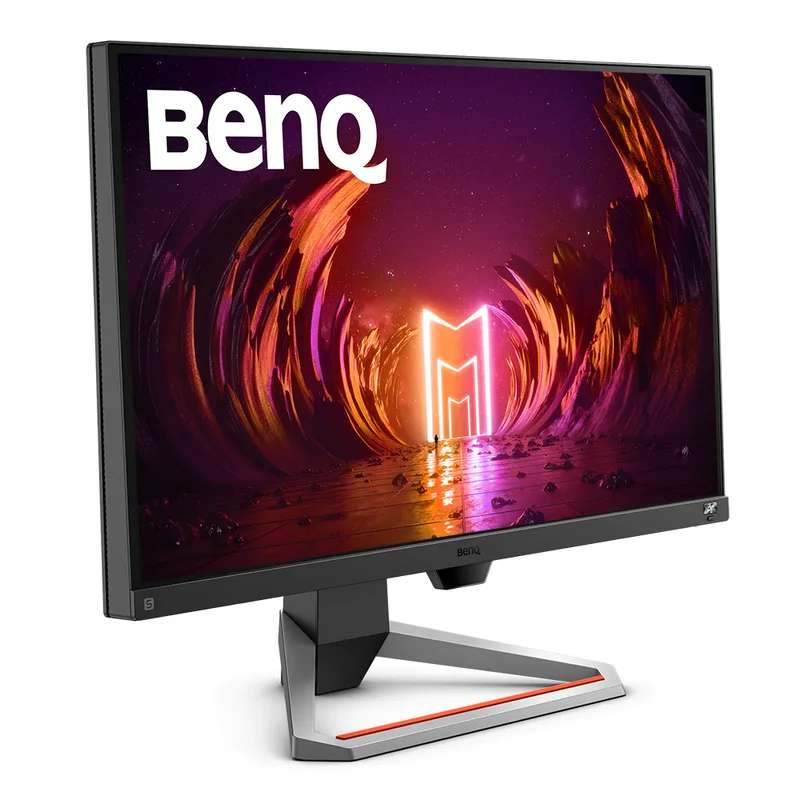
BenQ MOBIUZ EX2710S
Pros
- At $159–$199, the EX2710S is the entry point for 165Hz IPS with built-in speakers — a complete setup without additional audio hardware
- IPS panel with 99% sRGB delivers accurate web and document colors; color profiles don't shift at viewing angles the way VA panels do
- Full ergonomic stand (height, tilt, swivel, pivot) at this price tier is uncommon; it's the right posture setup out of the box
- BenQ's HDRi sensor adapts brightness based on room lighting — useful in home offices where lighting changes throughout the day
- 165Hz at 1080p is extremely smooth at any GPU level — even integrated graphics handles this resolution at full refresh
- USB 3.0 hub keeps a webcam and peripheral connected through the monitor without reaching around to a PC
Cons
- 1080p at 27 inches yields approximately 82 PPI — individual pixels are visible at normal viewing distance, and text appears softer than on 1440p or higher-density panels
- 2x 2.5W speakers handle video calls but lack depth for extended media listening; the EX2710Q's 2.1ch system is a significant audio upgrade
- At $159–$199, the resolution compromise is the primary reason to choose this monitor — buyers who prioritize sharp text should budget up to the Dell S2722DGM instead
The BenQ MOBIUZ EX2710S is the budget entry point in this roundup — 1080p at 27 inches, 165Hz, IPS panel with built-in speakers and a full ergonomic stand. At $159–$199, it’s the most affordable route to 165Hz with the ergonomic and audio features that BenQ bundles into its MOBIUZ line.
The resolution is the honest compromise. At 1080p on a 27-inch panel, pixel density is approximately 82 PPI. Individual pixels are visible at normal reading distance. Text looks softer than on 1440p panels. For remote workers who read long documents, review code, or do design work, the resolution difference is noticeable. For users primarily on video calls, browsing, and spreadsheets with large cells, the softness is more tolerable.
The full ergonomic stand — height, tilt, swivel, pivot — at $159–$199 is the EX2710S’s strongest practical argument. At this price, competitors typically ship with tilt-only stands, forcing an additional monitor arm purchase. BenQ includes everything needed for correct eye-level positioning out of the box.
The HDRi ambient light sensor adjusts brightness and color temperature as room lighting changes — a genuinely useful feature in home offices where lighting shifts from daylight to evening lamp conditions over a workday.
At $159–$199, the EX2710S makes sense as a second monitor in a dual-monitor setup where the primary display handles text-heavy work, or as a first monitor upgrade for users coming from a 60Hz screen who prioritize smoothness over resolution.
Buying Guide: Choosing a 144Hz Monitor for Remote Work
Why 144Hz Actually Matters for Office Work
The smoothness argument for 144Hz is measurable. At 60Hz, fast mouse movements and scrolling update 60 times per second — quick enough that motion leaves visible trail artifacts during rapid swipes. At 144Hz and above, the update rate nearly eliminates perceived lag between physical input and visual output.
For scrolling through dense documents, switching between applications, and navigating fast-changing dashboards or code files, the reduction in perceived lag translates to lower visual effort. Owner feedback from productivity workers (not gamers) consistently notes reduced end-of-day eye fatigue after upgrading from 60Hz. The effect is most pronounced in the first month; after adjustment, users rarely want to return.
1080p vs. 1440p at 27 Inches
At 27 inches, the resolution choice is visible. 1080p yields approximately 82 PPI — individual pixels become distinguishable during normal reading, and text lacks the crispness of higher-density panels. 1440p at 27 inches is 108 PPI, which is the minimum density where text looks properly sharp for sustained document reading.
The practical budget threshold: if the total monitor budget is under $200, 1080p 144Hz is the right trade. If budget allows $200+, 1440p 144Hz is worth the step up for text-intensive work.
IPS vs. VA at High Refresh Rates
IPS panels (ASUS VG27AQL1A, BenQ EX2710Q, BenQ EX2710S) deliver accurate colors from any viewing angle and respond faster to pixel state changes. VA panels (Samsung G55C, Dell S2722DGM) deliver higher native contrast — deeper blacks — at the expense of off-axis color accuracy and slightly slower pixel response.
For remote workers whose primary use is text, documents, and video calls, either panel type works well. For color-accurate work or setups where multiple people view the screen simultaneously, IPS is the default. For dark-mode coding environments or low-light home office setups where contrast matters, VA’s deeper blacks are a genuine advantage.
Stand vs. Monitor Arm
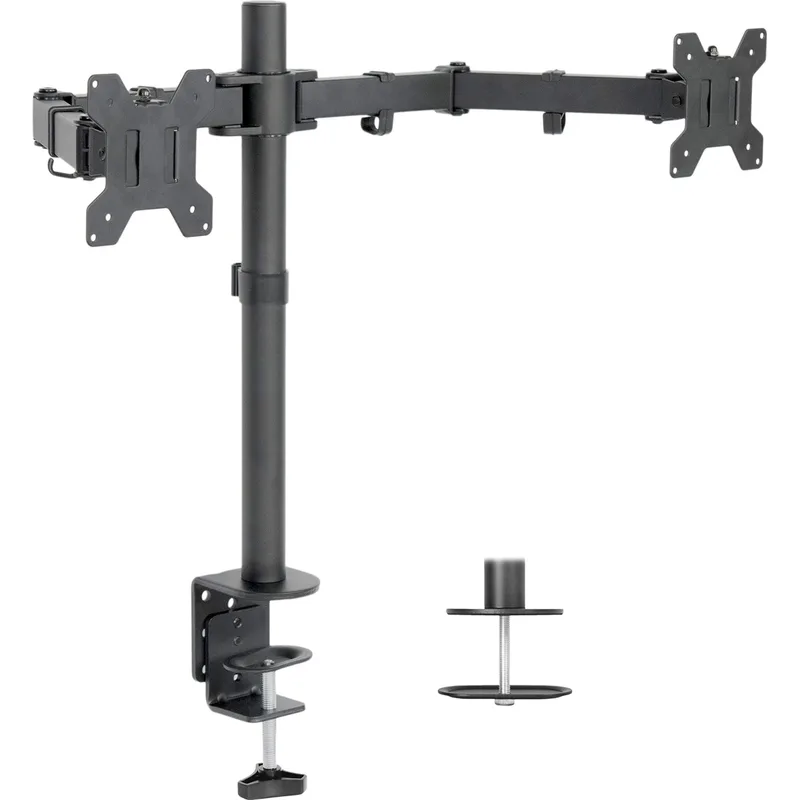
All five monitors in this roundup include stands with at least tilt adjustment. The ASUS VG27AQL1A, BenQ EX2710Q, Dell S2722DGM, and BenQ EX2710S include full ergonomic stands with height adjustment. The Samsung G55C 32” includes tilt only.
For ergonomically correct eye-level positioning, a height-adjustable stand or a monitor arm is necessary. If the chosen monitor lacks height adjustment, budget approximately $35–$70 for a basic VESA arm.
USB-C Compatibility
None of the five monitors in this roundup include USB-C input. MacBook users and USB-C laptop users need either a USB-C to DisplayPort cable (if the monitor has DisplayPort input) or a docking station. Factor this into total cost if building a single-cable desk setup.
FAQ
Does 144Hz actually help for non-gaming productivity work?
Owner reports consistently show yes. The primary benefits are reduced eye fatigue from scrolling, smoother application switching, and lower perceived input lag during normal navigation. The effect is most obvious when scrolling through long documents or code files. Most productivity workers who upgrade from 60Hz to 144Hz report not wanting to return, even without gaming use.
Is 1440p necessary at 27 inches?
At normal reading distance (60–80cm), 1080p at 27 inches produces visible individual pixels and slightly soft text. 1440p at 27 inches hits 108 PPI, where text looks sharp without requiring scaling adjustments. For sustained document and code work, 1440p is the better ergonomic choice. 1080p is acceptable if the budget prevents reaching 1440p.
What’s the difference between 144Hz and 165Hz for office work?
In practice, nothing measurable for office use. The step from 60Hz to 144Hz is significant and immediately perceptible. The step from 144Hz to 165Hz is within the margin of human perception for most tasks — most people cannot distinguish the two in side-by-side testing with non-gaming content. Both provide the primary benefit of high refresh: smoother scrolling and reduced flicker fatigue.
Can integrated graphics handle 144Hz at 1440p?
Modern integrated graphics (Intel Iris Xe, AMD Radeon integrated in Ryzen 7000, Apple M-series) can drive a 1440p 144Hz display at desktop use. Video calls, document work, spreadsheets, and web browsing run without issue at native 144Hz. Sustained 3D content (games, some 3D CAD) may require dropping refresh rate or resolution to maintain frame rates.
Which monitor should a MacBook user buy if there’s no USB-C?
All five monitors in this roundup use HDMI or DisplayPort. MacBook users have two options: a USB-C to HDMI or USB-C to DisplayPort adapter ($10–$20), or a Thunderbolt/USB-C docking station that adds the connection with additional ports. A dock purchase enables a single-cable desk setup — one cable from the MacBook to the dock, HDMI or DisplayPort from dock to monitor. The adapter approach is cheaper but requires two cables (one for display, one for power).
Conclusion
For most remote workers, the ASUS TUF Gaming VG27AQL1A is the right starting point. A 1440p IPS panel at 170Hz with a full ergonomic stand and built-in speakers at $249–$299 covers the core needs without requiring additional purchases to work correctly. The panel quality, refresh rate, and stand adjustability are all above expectations at the price.
For remote workers who run video calls through the monitor’s speakers without a headset, the BenQ MOBIUZ EX2710Q is worth the $30–$50 price premium for its 2.1ch audio and 95% DCI-P3 coverage. The audio quality difference over standard monitor speakers is audible in daily use.
For large-screen work — spreadsheet comparison, side-by-side documents, or simply more screen real estate — the Samsung Odyssey G55C 32” delivers 32 inches of 1440p at 165Hz at a price that’s dropped into the $229–$299 range in 2026.
Budget-constrained buyers who prioritize 1440p should look at the Dell S2722DGM at $199–$249. Those who can work with 1080p and prioritize smoothness and ergonomics at the lowest price should consider the BenQ MOBIUZ EX2710S at $159–$199.
Detailed Reviews
ASUS TUF Gaming VG27AQL1A
Pros
- 170Hz IPS panel delivers genuinely smooth document scrolling — the difference over 60Hz is apparent within the first hour
- 130% sRGB coverage produces colors that are punchy without oversaturation, accurate for design review and document work
- G-SYNC Compatible and FreeSync Premium cover both GPU ecosystems, reducing screen tearing in after-hours use
- Full ergonomic stand — height, tilt, swivel, and pivot — means proper eye-level positioning without an arm purchase
- Built-in speakers handle video call audio and background music without a separate desk speaker
- DisplayHDR 400 adds visible brightness headroom when working near windows in bright daylight conditions
Cons
- No USB-C — MacBook users need a dock or USB-C to DisplayPort adapter for connection
- 130% sRGB is wider than sRGB but falls short of DCI-P3 panels; not the right pick for professional video or P3 color work
- Built-in speakers are adequate but thin-sounding compared to a dedicated desktop speaker or BenQ's MOBIUZ audio
BenQ MOBIUZ EX2710Q
Pros
- 2.1ch speaker system with a dedicated subwoofer produces noticeably fuller audio than standard two-channel desk monitors — good for conference calls without a headset
- HDRi technology adjusts tone mapping based on content type, improving legibility in dark-themed code editors and document-heavy workflows
- 95% DCI-P3 coverage handles creative work that extends beyond the sRGB gamut — color review, social media graphics, photography editing
- 165Hz at 1440p makes fast scrolling through dense spreadsheets or long documentation comfortable over a full workday
- Color Optimizer mode boosts saturation for video without affecting calibration in work profiles — useful for dual-purpose setups
- Full stand ergonomics allow proper monitor height without additional hardware cost
Cons
- No USB-C power delivery — laptop users who want a single-cable setup need a dock
- HDRi auto-adjustment can shift the display appearance unexpectedly when switching between dark and light windows; it is togglable
- $279–$329 is a step up in price compared to monitors with similar refresh rates but without the audio system
Samsung Odyssey G55C (32")
Pros
- 32-inch QHD delivers approximately 91 PPI — high enough for sharp text without scaling, with more horizontal real estate than a 27-inch panel for spreadsheet and multi-window work
- 1000R curve reduces the angular distance to screen edges, keeping more of the display within a comfortable focus range during long sessions
- VA panel's high native contrast (typically 2500:1 or higher) produces noticeably deeper blacks for dark-mode code editors and reading environments
- 165Hz at 32 inches makes scrolling large documents and switching between virtual desktops visibly smoother than at 60Hz
- At $229–$299 (saw a 39% discount on Amazon in March 2026), a 32-inch 1440p 165Hz panel at this price is hard to match for large-screen buyers
- Eye Saver Mode and flicker-free backlight reduce strain during all-day sessions
Cons
- Tilt-only stand severely limits ergonomic options — a monitor arm is strongly recommended for proper eye-level positioning
- No USB-C, no USB hub, no built-in speakers — connectivity is HDMI and DisplayPort only
- VA panel motion blur at fast refresh rates is more pronounced than IPS alternatives in side-by-side comparisons, though less relevant for productivity use
- 75x75mm VESA pattern limits arm compatibility — verify arm compatibility before purchasing
Dell S2722DGM
Pros
- 1440p at 27 inches at $199–$249 is the best pixels-per-dollar entry point in this roundup — sharp text at native scaling without the 1080p pixel density compromise
- Height-adjustable stand on a budget monitor is uncommon at this price; most $200 monitors ship with tilt-only stands
- 165Hz over DisplayPort with FreeSync Premium covers smooth scrolling and reduces screen tearing during fast window movements
- 1500R curved VA panel produces deeper blacks than flat IPS panels at equivalent prices — dark mode coding environments benefit from the contrast improvement
- 100x100mm VESA compatibility means a monitor arm can replace the stand if more positioning flexibility is needed
- Dell's build quality and consistent OSD navigation are well-documented across owner reports at this price tier
Cons
- No USB-C and no USB hub — peripheral connections require a separate hub or dock
- VA panel exhibits color shift at off-axis viewing angles — noticeable when viewing from a steep angle or sharing the screen with a colleague nearby
- HDMI is limited to 144Hz; users who need the full 165Hz must use the DisplayPort connection
- No built-in speakers — budget for audio separately
BenQ MOBIUZ EX2710S
Pros
- At $159–$199, the EX2710S is the entry point for 165Hz IPS with built-in speakers — a complete setup without additional audio hardware
- IPS panel with 99% sRGB delivers accurate web and document colors; color profiles don't shift at viewing angles the way VA panels do
- Full ergonomic stand (height, tilt, swivel, pivot) at this price tier is uncommon; it's the right posture setup out of the box
- BenQ's HDRi sensor adapts brightness based on room lighting — useful in home offices where lighting changes throughout the day
- 165Hz at 1080p is extremely smooth at any GPU level — even integrated graphics handles this resolution at full refresh
- USB 3.0 hub keeps a webcam and peripheral connected through the monitor without reaching around to a PC
Cons
- 1080p at 27 inches yields approximately 82 PPI — individual pixels are visible at normal viewing distance, and text appears softer than on 1440p or higher-density panels
- 2x 2.5W speakers handle video calls but lack depth for extended media listening; the EX2710Q's 2.1ch system is a significant audio upgrade
- At $159–$199, the resolution compromise is the primary reason to choose this monitor — buyers who prioritize sharp text should budget up to the Dell S2722DGM instead