| Spec | Dell S2722QC | LG 27UK850-W | Samsung ViewFinity S65UA | Dell UltraSharp U3423WE |
|---|---|---|---|---|
| Rating | 8.7/10 | 8.5/10 | 8.9/10 | 9.3/10 |
| Price | Unavailable | $360.00as of Oct 18, 2026 | Unavailable | $688.98-$799.00as of Oct 18, 2026 |
| Size | 27 inches | 27 inches | 34 inches | 34.1 inches |
| Resolution | 3840x2160 (4K UHD) | 3840x2160 (4K UHD) | 3440x1440 (WQHD) | 3440x1440 (WQHD) |
| Panel | IPS | IPS | VA | IPS Black |
| Aspect Ratio | 16:9 | 16:9 | 21:9 | 21:9 |
| Refresh Rate | 60Hz | 60Hz | 100Hz | 60Hz |
| USB-C Power Delivery | 65W | 60W | 90W (video + charging) | 90W |
| Connectivity | HDMI×2, USB-C | HDMI×2, DisplayPort, USB-C | HDMI×2, DisplayPort, USB-C | — |
| HDR | None | HDR10 | — | — |
| Stand | Tilt only | — | — | — |
| Speakers | — | Dual 7W MaxxAudio | — | — |
| Curve | — | — | 1000R | 1800R |
| Ethernet | — | — | RJ45 built-in | RJ45 built-in |
| Contrast Ratio | — | — | 4000:1 | 2000:1 |
| USB Hub | — | — | — | 5×USB-A, 1×USB-C downstream |
| Factory Calibrated | — | — | — | Yes, Delta E < 2 |
| Check Price → | Check Price → | Check Price → | Check Price → |
Prices change daily — tap Check Price for the current Amazon price.
The ultrawide monitor market moved fast at CES 2026. Dell unveiled a 52-inch 6K curved ultrawide, LG announced its 39-inch UltraGear Evo with 5K2K resolution, and MSI teased a 360Hz 34-inch QD-OLED aimed at the high-performance segment. These announcements confirm what buyers already feel at the desk: the jump from a standard 27-inch monitor to a 34-inch ultrawide is one of the most significant setup upgrades available.
But it’s not the right move for every remote worker.
The 27-inch vs 34-inch ultrawide decision comes down to three variables: how much desk space you have, what you actually do with a second window, and whether your laptop or desktop GPU handles 3440×1440 without throttling under load. This comparison covers the practical decision — and the four monitors that represent each size category best.
Quick Comparison
| Monitor | Size | Resolution | Panel | Refresh | USB-C PD | Ethernet | Price |
|---|---|---|---|---|---|---|---|
| Dell S2722QC | 27” 16:9 | 3840×2160 | IPS | 60Hz | 65W | No | Unavailable |
| LG 27UK850-W | 27” 16:9 | 3840×2160 | IPS | 60Hz | 60W | No | $360.00 as of Oct 18, 2026 |
| Samsung S65UA | 34” 21:9 | 3440×1440 | VA | 100Hz | 90W | Yes | Unavailable |
| Dell U3423WE | 34” 21:9 | 3440×1440 | IPS Black | 60Hz | 90W | Yes | $688.98-$799.00 as of Oct 18, 2026 |
The Case for 27-Inch Monitors
A 27-inch 4K monitor is the most practical choice for most remote workers. The reasons are straightforward.
Desk space. A 27-inch monitor has a footprint of roughly 24 inches wide by 14-16 inches tall, depending on stand design. A 34-inch ultrawide is 32 inches wide — that’s eight additional inches of horizontal spread. On a 48-inch desk (the most common), a 34-inch ultrawide leaves very little room for anything else. On a 60-inch desk, the same monitor fits easily without crowding.
Resolution and pixel density. At 27 inches, 4K (3840×2160) delivers 163 pixels per inch — text is crisp, spreadsheets are readable at 100% scaling, and the display doesn’t require any scaling adjustments on Windows or macOS. A 34-inch ultrawide at 3440×1440 delivers 109 pixels per inch — noticeably lower pixel density. For text-heavy work, 4K at 27 inches is sharper.
GPU compatibility. Driving 4K at 60Hz requires modest GPU resources. Most integrated graphics (Apple M-series, Intel Iris Xe, AMD integrated) handle it without issue. 3440×1440 at 60Hz is similar — but at 100Hz (as on the Samsung S65UA), GPU requirements climb. For laptop users relying on integrated graphics, the 27-inch 4K option is more reliable.
Price. Good 27-inch 4K monitors start under $350. Good 34-inch ultrawides with USB-C start around the same price — but the Samsung S65UA is the exception. Most capable ultrawides cost significantly more.
1. Dell S2722QC — Best 27-Inch Pick

The S2722QC is the most practical 27-inch 4K monitor for remote workers who use a laptop as their primary machine. The 65W USB-C input handles MacBook Air, Dell XPS 13, and most thin-and-light Windows laptops with a single cable — display signal and power in one connection.
The IPS panel covers 99% sRGB with consistent color across viewing angles. At 27 inches, 4K resolution puts individual pixels below the threshold of visibility at normal viewing distances — this matters for reading long documents, reviewing spreadsheets, and doing code review without eye strain.
The stand’s limitations are real: tilt only, no height adjustment. Most home office setups will want to add a monitor arm at some point. The VESA 100×100 compatibility means any standard arm works.
For buyers who don’t need speakers built into the monitor and plan to add a quality USB-C dock separately, this is the right choice.
Dell S2722QC
Pros
- 65W USB-C handles MacBook Air, ThinkPad, and most thin-and-light laptops
- 99% sRGB IPS panel produces accurate color for document and photo work
- 4K resolution at 27 inches delivers sharp text without scaling issues on Windows or macOS
- Price remains under $380, leaving budget for a dock or accessories
Cons
- Tilt-only stand requires a monitor arm for proper ergonomic height
- No HDR certification — fine for office work, limiting for video editing
- 60Hz refresh rate works for productivity but not gaming
2. LG 27UK850-W — Best 27-Inch for Mac

The LG 27UK850-W makes one trade-off the Dell doesn’t: built-in speakers. The dual 7W MaxxAudio speakers are legitimately useful for a home office — good enough for video call audio and background music without requiring a separate speaker purchase.
The HDR10 certification is real, though modest. The monitor hits around 350 cd/m² peak brightness — enough to show HDR content with some benefit, but not in the same category as high-brightness HDR displays.
MacBook users should note: 60W USB-C power delivery covers MacBook Air (M1, M2, M3, M4) fully but will throttle under sustained heavy load on MacBook Pro 14-inch or 16-inch. For MacBook Pro users doing intensive tasks, this is a practical limitation.
The virtually borderless design on three sides makes dual-monitor setups cleaner than monitors with thicker bezels — relevant if you’re pairing two 27-inch displays rather than switching to ultrawide.
LG 27UK850-W
Pros
- Built-in 7W MaxxAudio speakers eliminate the need for separate desk speakers
- Virtually borderless three-side design keeps dual-monitor setups clean
- HDR10 support adds a functional (if modest) improvement for video content
- sRGB 99% accuracy is sufficient for most photo and design work
Cons
- 60W USB-C power delivery falls short for 15-inch MacBook Pro under heavy load
- Older design from 2018 — newer alternatives have improved color gamut coverage
- USB hub uses USB 3.0 speeds rather than faster USB 3.2
The Case for 34-Inch Ultrawides
The 21:9 aspect ratio at 34 inches creates a fundamentally different work experience than a 16:9 panel at any size. The extra horizontal real estate — roughly equivalent to adding 40–45% more screen width — means you can have two windows open at equal, usable sizes without squinting at a narrow half-screen.
For multitaskers, the ultrawide argument is strong. Writing in one window, researching in another, with Slack in a third — all at full readable size, without moving windows, without a gap between two monitors. The physical seam in a dual-monitor setup is eliminated. Window snapping into thirds becomes natural with keyboard shortcuts.
For video editors and designers, the extra horizontal resolution in 3440×1440 gives timeline space that 16:9 4K doesn’t provide. Video editing software, Figma, and spreadsheet-heavy workflows benefit directly from the width.
The trade-off is pixel density. Moving from 4K/27-inch (163 ppi) to 3440×1440/34-inch (109 ppi) is a visible downgrade in text sharpness — particularly on Windows where font rendering differs from macOS. At 34 inches and normal viewing distances (24–28 inches), 109 ppi is readable but not as crisp.
GPU demands increase. At 60Hz, 3440×1440 is similar to 4K — most integrated GPUs handle it. At 100Hz, the GPU load climbs. M2 MacBook Air and Intel integrated graphics can struggle.
3. Samsung ViewFinity S65UA — Best Value Ultrawide
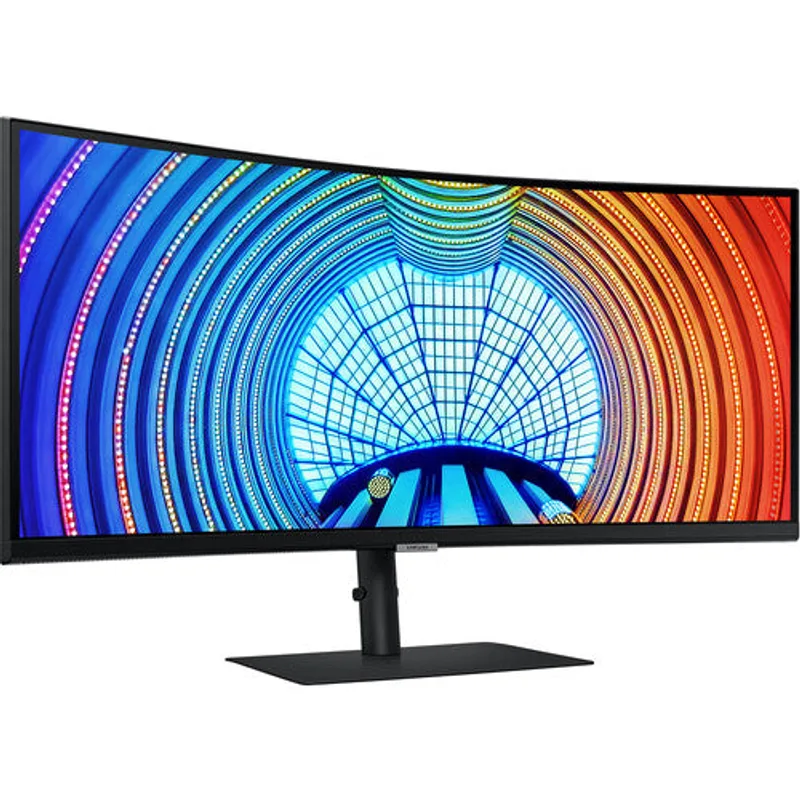
The Samsung S65UA (model LS34A654UBNXGO) is the most compelling value in 34-inch ultrawides in 2026. At under $330, it delivers USB-C with video input and 90W power delivery — features that were premium-tier a year ago.
The VA panel is the key decision point. VA technology achieves 4000:1 native contrast ratio, which means blacks in dark application themes, video, and presentations look dramatically deeper than on IPS. For remote workers who use dark mode in VS Code, Notion, or their OS, this is a real benefit.
The 100Hz refresh rate provides smoother cursor tracking and scrolling than 60Hz panels. On a 34-inch screen, this becomes more noticeable — the larger the panel, the more apparent the difference between 60Hz and 100Hz during fast scroll.
The built-in RJ45 Ethernet turns this monitor into a partial docking station: connect your laptop via USB-C, get 90W charging, display output, and wired Ethernet from one cable. Add a USB hub elsewhere for peripherals and the desk gets clean.
The 1000R curve is aggressive. At the extreme left and right edges of the 34-inch screen, some viewers notice optical distortion — particularly on straight horizontal lines like spreadsheet rows or code editor lines. This is a consistent criticism of 1000R-curved monitors at this size.
Samsung ViewFinity S65UA
Pros
- Under $330 for a 34-inch ultrawide with 90W USB-C video — exceptional value
- VA panel achieves 4000:1 contrast ratio — blacks are dramatically deeper than IPS
- Built-in Ethernet port turns the monitor into a partial docking station
- 100Hz refresh rate provides noticeably smoother scrolling than 60Hz panels
Cons
- 1000R aggressive curvature creates distortion at extreme left and right edges
- VA panel has slower pixel response than IPS — ghosting visible in fast motion
- Color accuracy trails IPS at this price range — Delta-E is higher out of box
4. Dell UltraSharp U3423WE — Best Premium Ultrawide
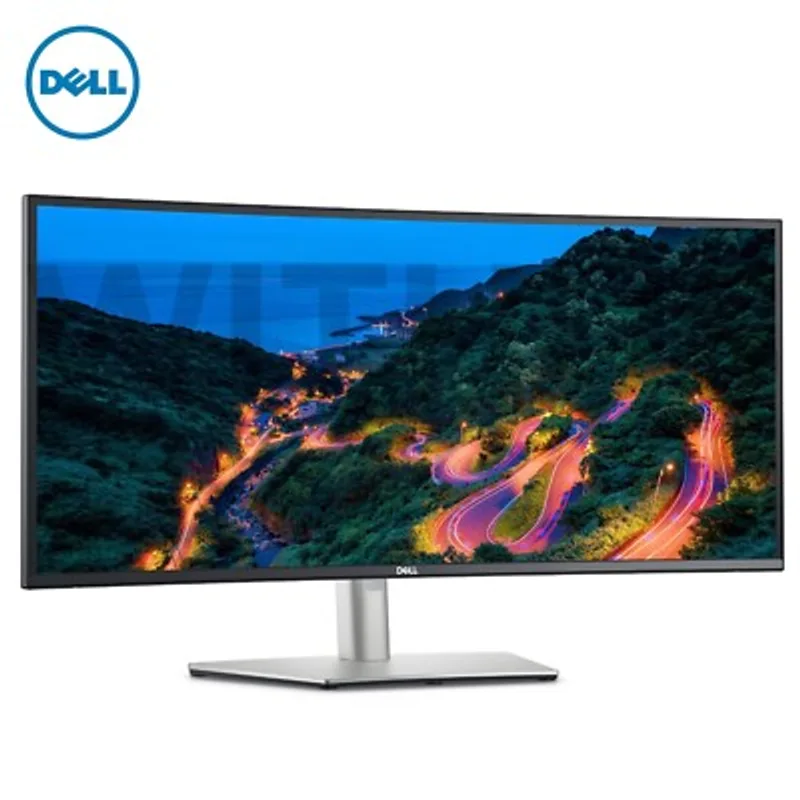
The U3423WE is the monitor that eliminates both the dock and the color calibration service from your setup budget. The IPS Black panel achieves 2000:1 native contrast — roughly double standard IPS, approaching VA quality, while retaining IPS’s superior color accuracy and viewing angles.
Factory calibration to Delta E under 2 means the colors displayed are accurate to professional standards out of the box. For designers, photographers, and anyone sending color-accurate files to clients or printers, this matters more than any other spec on the list.
The built-in USB hub — five USB-A ports and one downstream USB-C — plus the RJ45 Ethernet port means this monitor replaces a dedicated dock entirely. One 90W USB-C cable from the monitor to a MacBook Pro provides power, display, Ethernet, and USB expansion. The desk gets cleaner and simpler.
The price is the barrier. Dell’s MSRP is $1,199 but the monitor frequently sells for $649–$899 through Dell’s own sales and third-party sellers. At $649, it’s a strong premium value. At $899, the value proposition weakens for workers who don’t specifically need color accuracy or the full hub.
For creative professionals — designers, video editors, marketers who handle color-critical files — the U3423WE is the right monitor and the price is justified.
Dell UltraSharp U3423WE
Pros
- IPS Black panel achieves 2000:1 contrast — nearly double standard IPS, close to VA without VA's color tradeoffs
- Built-in USB hub (5×USB-A) and Ethernet replaces a separate dock entirely
- Factory calibrated to Delta E under 2 — print-accurate color from day one
- 90W USB-C charges MacBook Pro 14-inch while running the full 34-inch display
Cons
- Price is the highest in this comparison — justified for creative professionals, hard to justify for standard remote work
- 60Hz only — not compatible with gaming use after hours
- Daisy-chain setup is complex — requires DisplayPort out for a second monitor
Head-to-Head: What Matters for Remote Work
Productivity and Multitasking
34-inch ultrawide wins. The 21:9 aspect ratio provides genuine productivity gains for any work pattern involving two or more apps simultaneously. Side-by-side windows are larger and more readable than two half-screens on a standard 16:9 panel.
Text Clarity and Reading Comfort
27-inch 4K wins. At 163 ppi, 4K text at 27 inches is sharper than 3440×1440 at 34 inches (109 ppi). For workers who spend most of the day reading and writing — legal, writing, research, customer support — the 27-inch 4K advantage in text sharpness is real and persistent.
Video Calls and Collaboration
Tie. Both sizes handle video calls equally. Neither aspect ratio affects call quality. If anything, the wider viewport on a 34-inch ultrawide makes it easier to keep Zoom or Teams in a fixed portion of the screen while continuing to work.
Desk Footprint
27-inch wins clearly. Eight additional inches of width is significant. A 34-inch ultrawide on a 48-inch desk leaves little room. The same desk with a 27-inch monitor has space for a notebook, external keyboard with clearance, and a webcam arm without crowding.
Value
Samsung S65UA wins. At $279–$329 for a 34-inch ultrawide with 90W USB-C and built-in Ethernet, the S65UA matches or undercuts most 27-inch 4K monitors while adding significant horizontal workspace. It’s an unusual value position.
Color Accuracy for Creative Work
Dell U3423WE wins. Factory Delta E < 2 calibration on an IPS Black panel is the most accurate display in this group. The Dell S2722QC is the 27-inch equivalent — accurate but not factory calibrated.
How to Decide
Buy a 27-inch 4K monitor if:
- Your desk is under 55 inches wide
- You primarily read, write, or work in a single app at a time
- You rely on laptop integrated graphics (Intel Iris, AMD Radeon, Apple M-series without a dedicated GPU)
- You want to add a second monitor later for a true dual-monitor setup
- Text sharpness and pixel density matter more than multitasking real estate
Buy a 34-inch ultrawide if:
- Your desk is 55 inches or wider
- You regularly work across two or three apps simultaneously
- You want to eliminate the physical gap and cable of a dual-monitor setup
- Your GPU handles 3440×1440 at your preferred refresh rate
- You’re willing to trade some pixel density for horizontal workspace
Specific picks:
- Tight desk, single app, strong pixel density priority: Dell S2722QC ($349–$379)
- Wide desk, multitasker, budget ultrawide: Samsung ViewFinity S65UA ($279–$329)
- Creative professional needing color accuracy: Dell U3423WE ($649–$899)
- Want 27-inch with built-in speakers: LG 27UK850-W ($349–$379)
FAQ
Does a 34-inch ultrawide replace two monitors? For most use cases, yes. Side-by-side windows on a 34-inch ultrawide give each app roughly the same space as a 24-inch standard monitor. The physical seam is eliminated. For workers who want three equal-sized windows simultaneously, a 34-inch may feel narrower — a 38-inch ultrawide or a 49-inch super-ultrawide covers that use case, at a higher price.
Is 3440×1440 good enough for 2026 or should I hold out for 4K ultrawide? 3440×1440 is the current standard for productive 34-inch ultrawides. 4K ultrawide (3840×2160 at 21:9, or 5120×2160 on larger panels) is available but doubles the GPU requirements and cost. For most remote workers — document editing, spreadsheets, video calls, coding — 3440×1440 is sufficient. Creative professionals who output to print or 4K displays benefit from 4K ultrawide.
Will my MacBook handle a 34-inch ultrawide? Apple M-series chips (M1 through M4) handle 3440×1440 at 60Hz without difficulty. At 100Hz (as on the Samsung S65UA), some older M1 MacBook Airs show reduced frame rates under sustained load. MacBook Pro M3 and M4 handle 100Hz reliably. Thunderbolt 4 or USB-C with DisplayPort 1.4 is required — ensure your cable and dock support it.
What’s the minimum desk depth for a 34-inch ultrawide? The most important dimension is viewing distance, not just width. At 34 inches diagonal with a 21:9 aspect ratio, the recommended viewing distance is 28–32 inches. A desk that’s 24 inches deep places the monitor too close. Most sit-stand desks are 30 inches deep — this is the practical minimum for comfortable use of a 34-inch ultrawide.
Can I run a 34-inch ultrawide from a USB-C laptop without a dock? Both the Samsung S65UA and Dell U3423WE accept USB-C with DisplayPort Alt Mode — meaning your laptop’s USB-C port drives the display and receives 90W power delivery simultaneously, with no dock required. This only works with USB-C ports that support DisplayPort Alt Mode; not every USB-C port does. Check your laptop specs before assuming all USB-C ports carry video.
Conclusion
The standard answer — 34-inch ultrawide for multitaskers, 27-inch 4K for focused work — holds in 2026, but the Samsung ViewFinity S65UA complicates it. At $279–$329 for a 34-inch ultrawide with 90W USB-C video and built-in Ethernet, the price advantage of staying at 27 inches is largely gone for workers with adequate desk space.
If your desk is under 55 inches: the Dell S2722QC is the right monitor. Compact, sharp, practical, and $350 leaves budget for the rest of your setup.
If your desk is 55 inches or wider and you multitask across apps: the Samsung ViewFinity S65UA is the clearest value upgrade in remote work monitors right now.
If color accuracy and a full docking station in one device are your requirements: the Dell U3423WE justifies the premium.
The 34-inch ultrawide category will likely look significantly different by late 2026 as QD-OLED panels at this size approach mainstream price points. For buyers who can wait, the gap between today’s options and next-generation panels may close within the year.
Detailed Reviews
Dell S2722QC
Pros
- 65W USB-C handles MacBook Air, ThinkPad, and most thin-and-light laptops
- 99% sRGB IPS panel produces accurate color for document and photo work
- 4K resolution at 27 inches delivers sharp text without scaling issues on Windows or macOS
- Price remains under $380, leaving budget for a dock or accessories
Cons
- Tilt-only stand requires a monitor arm for proper ergonomic height
- No HDR certification — fine for office work, limiting for video editing
- 60Hz refresh rate works for productivity but not gaming
LG 27UK850-W
Pros
- Built-in 7W MaxxAudio speakers eliminate the need for separate desk speakers
- Virtually borderless three-side design keeps dual-monitor setups clean
- HDR10 support adds a functional (if modest) improvement for video content
- sRGB 99% accuracy is sufficient for most photo and design work
Cons
- 60W USB-C power delivery falls short for 15-inch MacBook Pro under heavy load
- Older design from 2018 — newer alternatives have improved color gamut coverage
- USB hub uses USB 3.0 speeds rather than faster USB 3.2
Samsung ViewFinity S65UA
Pros
- Under $330 for a 34-inch ultrawide with 90W USB-C video — exceptional value
- VA panel achieves 4000:1 contrast ratio — blacks are dramatically deeper than IPS
- Built-in Ethernet port turns the monitor into a partial docking station
- 100Hz refresh rate provides noticeably smoother scrolling than 60Hz panels
Cons
- 1000R aggressive curvature creates distortion at extreme left and right edges
- VA panel has slower pixel response than IPS — ghosting visible in fast motion
- Color accuracy trails IPS at this price range — Delta-E is higher out of box
Dell UltraSharp U3423WE
Pros
- IPS Black panel achieves 2000:1 contrast — nearly double standard IPS, close to VA without VA's color tradeoffs
- Built-in USB hub (5×USB-A) and Ethernet replaces a separate dock entirely
- Factory calibrated to Delta E under 2 — print-accurate color from day one
- 90W USB-C charges MacBook Pro 14-inch while running the full 34-inch display
Cons
- Price is the highest in this comparison — justified for creative professionals, hard to justify for standard remote work
- 60Hz only — not compatible with gaming use after hours
- Daisy-chain setup is complex — requires DisplayPort out for a second monitor